How to get in at Avonmouth & Walsall

How to get in at Avonmouth & Walsall
(More Space Program sites coming soon)
Two ways to enter: use your existing PIN on the touchscreen gate keypad, or set up the UniFi Identity app to open the gate from your phone without leaving the car.
Option A — Open the gate with the UniFi Identity app
Fastest on rainy days ☔ — just tap in the app from the warmth of your car.
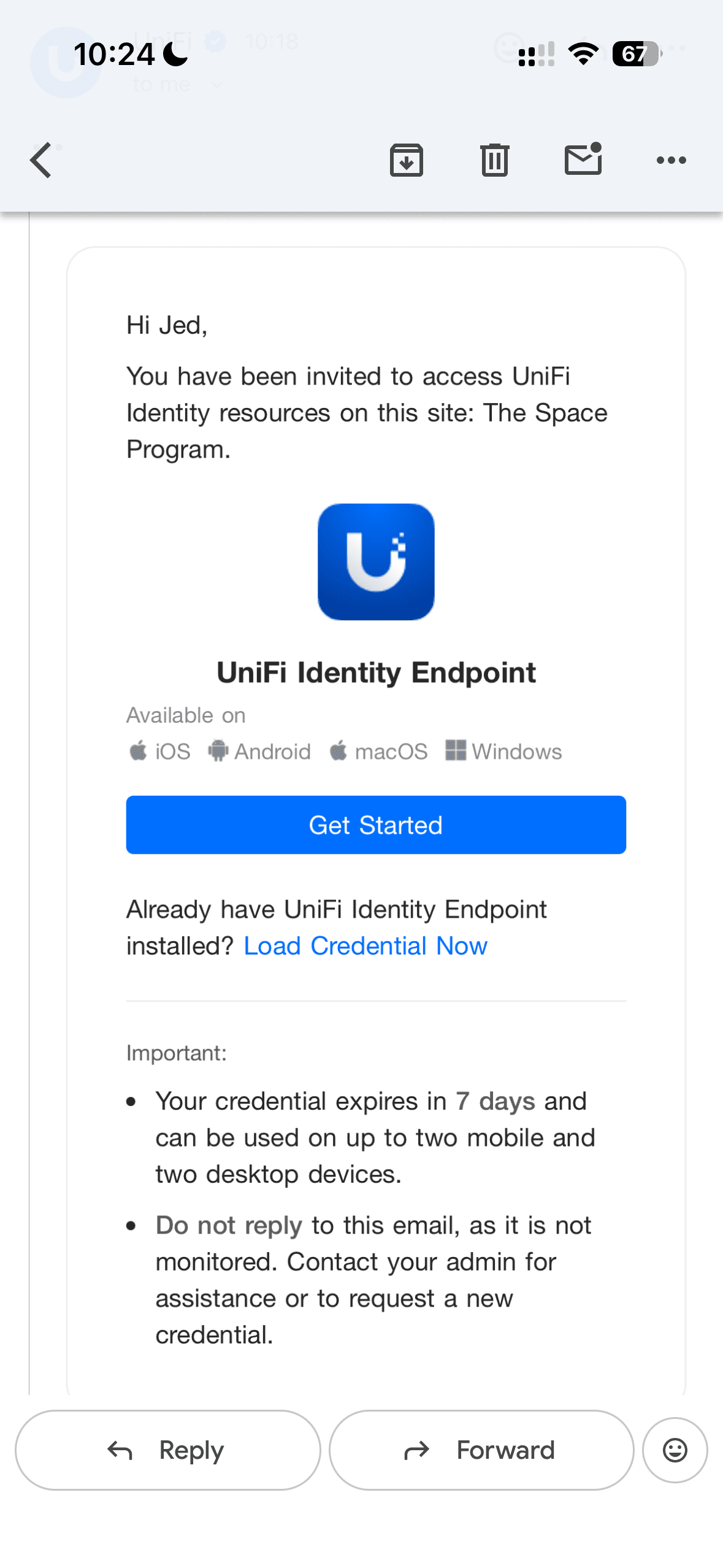
Look for an email from UniFi titled something like “You have been invited to access UniFi Identity resources”. Open it on your phone within 7 days of receiving it — after that, it expires and you’ll need to ask your Mission Controller to resend it.
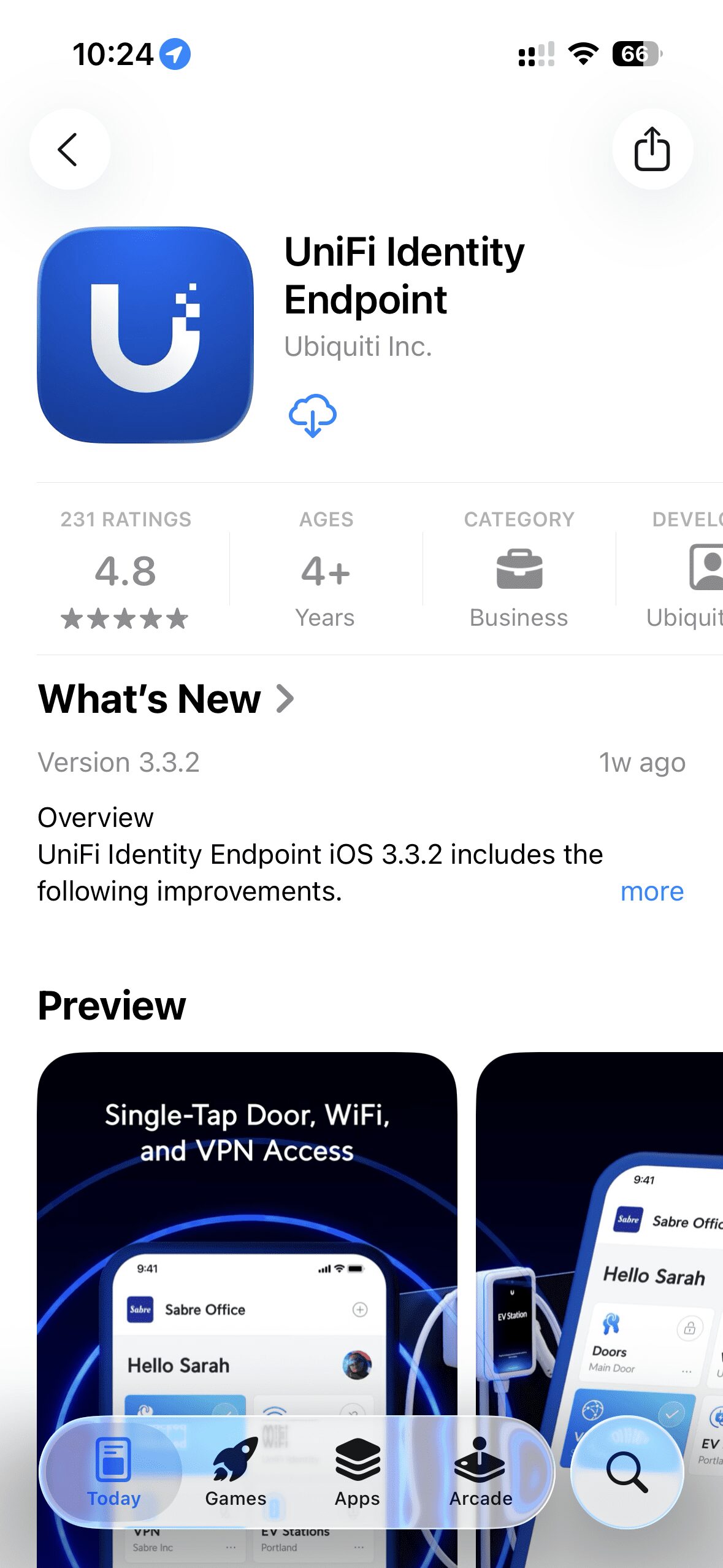
Follow the link from the email to the App Store and install the app.
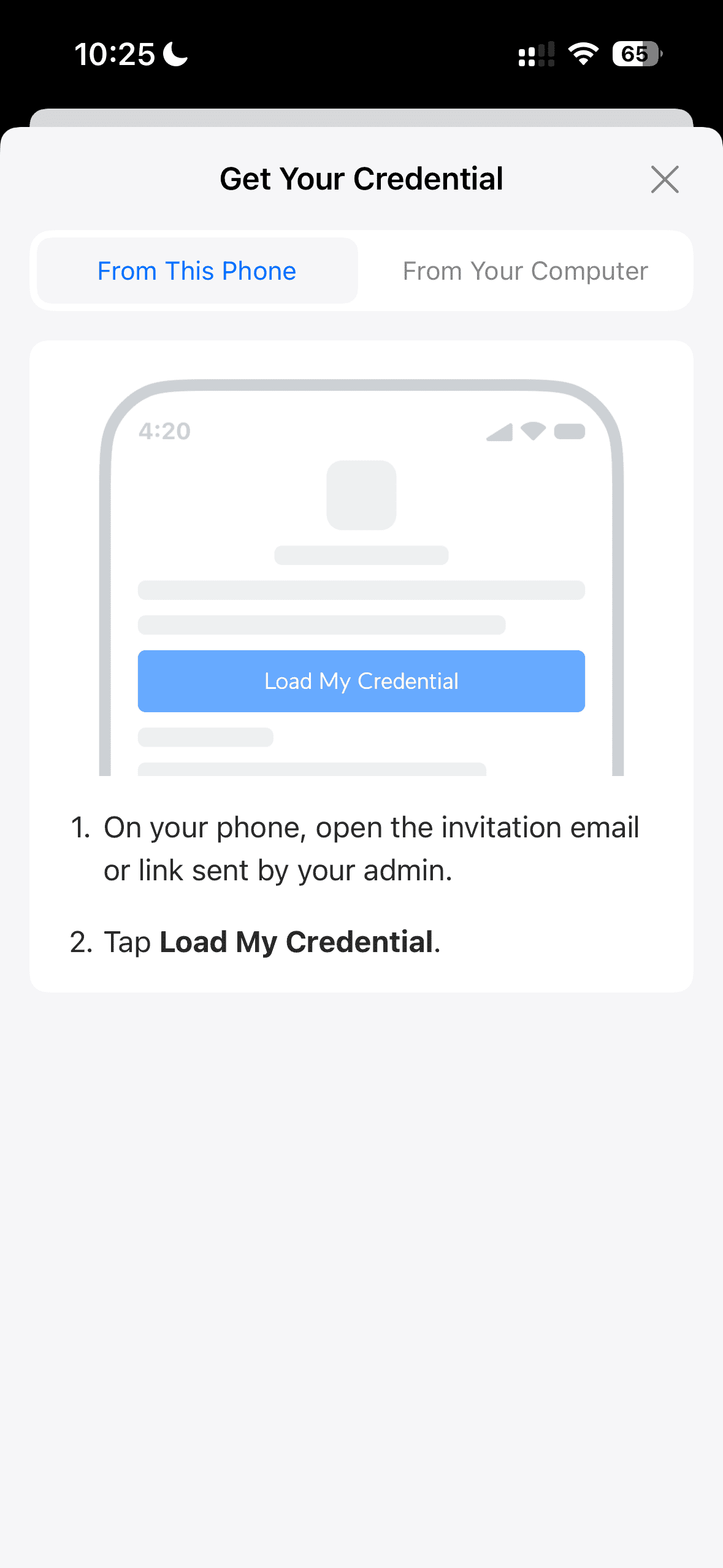
Return to the email and tap Load Credential, which will open the app and add your gate pass.
The app will ask for several permissions (Bluetooth, Location, Notifications, Nearby Devices, Camera/NFC on some devices). Please allow them all for the smoothest, one‑tap gate opening experience.
If you’d rather not allow everything, you can always use your existing PIN on the gate touchscreen instead.
When you arrive, open the app and tap Open Gate for Avonmouth or Walsall. If you have multiple sites, you’ll see them listed — more locations are being added soon.
Option B — Use your existing PIN on the gate touchscreen
Just type your current PIN on the gate touchscreen keypad and the gate will open. No app required.
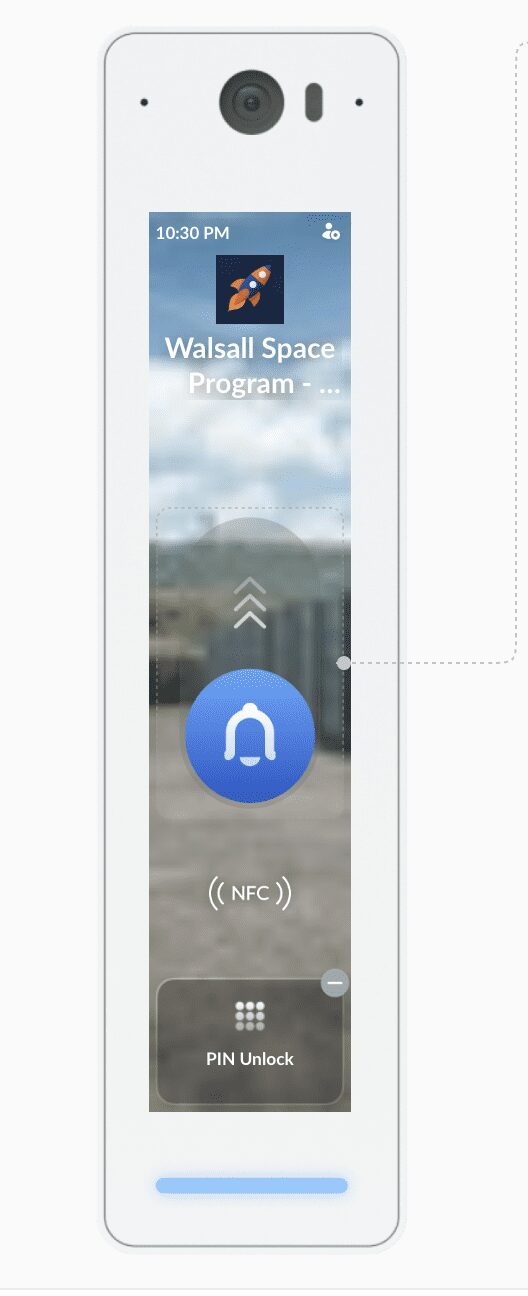
- Your PIN remains the same as before.
- If you make a mistake, press Clear and try again.
- Having trouble? Use the app option or press the bell for help.
Works at Avonmouth and Walsall today — more Space Program sites coming soon.
FAQ & Help
- I didn’t get the email. Check spam/junk for messages from UniFi and search for “Identity Endpoint” or “Load Credential”. Still stuck? Contact The Space Program team or your Mission Controller.
- Can I use multiple devices? Yes — your credential supports multiple devices (e.g., up to two mobiles and two desktops as per the invite). If you need it reset, let us know.
- Privacy & permissions. Permissions are only used to communicate securely with the gate and to show nearby resources. If you prefer, you can skip the app and just use your PIN.
If anything doesn’t work, please contact the site office or press the bell at the gate touchscreen and we’ll get you in right away.